Live data from Hacker News

macOS screenshot tricks to impress your co-workers

sal.dev

281–290 of 332 posts

Re: macOS screenshot tricks to impress your co-workers

#281

Earlier quoted context omitted.

iirc that just shows a toolbar with the different screenshot modes. You still need to manually select a mode, which is not as fast and intuitive as ShareX which combines most of the modes into one

Then you are back to the macOS key combo shortcuts, surely? Memorise the one you want and then it's comparable.

Maybe I'm misunderstanding something. ShareX only requires you to memorize one keyboard shortcut, and then its a single click to either do a full screen capture, window capture, or region capture. For MacOS you either memorize multiple shortcuts, or you use one shortcut to show the toolbar, then you select a mode, and then you capture (well aside from full screen capture which is automatic). Overall it seems like MacOS requires either more memorization or more clicks.

Edit: here's a quick demo of ShareX for people who haven't used it [1]. You can see me enter capture mode (via keyboard shortcut), which starts in fullscreen capture mode, then I hover over the calculator to switch to window capture mode, then I move it away to switch back to fullscreen capture mode, then I click and drag to do a region capture and release to complete the capture. You can also see the annotation tools at top that can be used during capture.

[1]: https://giant.gfycat.com/WellwornSizzlingIrukandjijellyfish....
Re: macOS screenshot tricks to impress your co-workers

#282

Earlier quoted context omitted.

> When the thumbnail of the screenshot appears in the lower-right corner of the screen, click it What's this app called? I'm embarrassed to admit I can't tell, even after trawling activity monitor.

Not sure if I am missing something. But it is the default implementation in macOS. Just make sure "show floating thumbnail" is turned on (CMD+SHIFT+5 then click options).

I can open it, and take screenshots. But when you edit the image I can’t tell what the app is. Am I still in the screenshot application?

Re: macOS screenshot tricks to impress your co-workers

#283
post #45

Here is a key sequence I use very often. It takes a screenshot of a chosen window without the window's shadow. - First, type command + shift + 4 (the mouse pointer turns into crosshair). - Then type the space bar (the crosshair turns into a camera icon). - Hover the mouse pointer (a camera icon now), to highlight the chosen window. - Finally, hold the option key and click. This sounds like a lot of steps but it becom…

Just for comparison: https://userbase.kde.org/images.userbase/4/4c/Spectacledefau... The default kde screenshot app just has simple dropdown menus for all that. Is command+$, space, option+click really better than PrtScr, click?

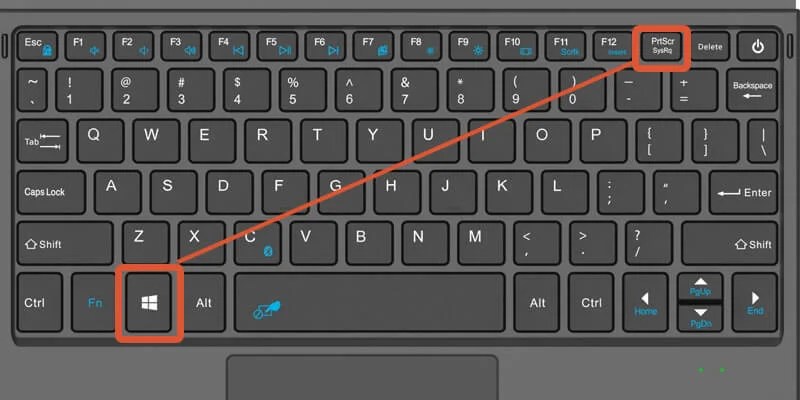
Please show me the PrtScr key on a laptop 60% keyboard.

Re: macOS screenshot tricks to impress your co-workers

#284

Earlier quoted context omitted.

Wish I could change copy/paste to always work without copying style.

Really wish this was the default, with an option to turn on "paste with formatting". It'd be interesting to see with telemetry how many users choose that. FWIW, in my many decades of using computers, I've never once wanted to paste with styles as whatever app is getting pasted into inevitably (without exception, like 100% of the time) "guesses" the formatting incorrectly.

There were some amazing workarounds to the default discussed her recently. One suggested pasting into the browser url field then copying and pasting out of it.

The default is crazy.

Re: macOS screenshot tricks to impress your co-workers

#285

Earlier quoted context omitted.

Wish I could change copy/paste to always work without copying style.

Do you mean regular clipboard text? You can do that with: ⇧ ⌥ ⌘ V This is not necessarily supported everywhere though...

Oh you can usually for sure, it’s just a bit too close to a gymnastic manoeuvre.

I also believe it should be the copy that strips the style.

Re: macOS screenshot tricks to impress your co-workers

#286
post #238

Y'all definitely need to check out Shottr too, it has built in annotation and OCR and doesn't cost anything unlike CleanShot (which admittedly, is great too!) https://shottr.cc/

Isn't OCR now a systemwide feature in macOS and iOS?

"Only" for M1 Macs.

Re: macOS screenshot tricks to impress your co-workers

#287
post #4

Another cool trick: Acorn image editor can take screenshots of the whole desktop environment (all windows, menus, etc) and put them in separate layers. You can then rearrange them as you wish.

That's a great idea. Capture the data first, then sort it out.

The new GNONE screenshot tool is similar because it capurures everything as soon as you hit Print Screen, but it still forces you to decide what to save immediately. It would be nice if has an option to save everything so you can pick out what you want in post.

I also want something like this for audio. Record every audio stream on my machine as different tracks. Then I can select which ones I want later.

Re: macOS screenshot tricks to impress your co-workers

#288

Earlier quoted context omitted.

Just for comparison: https://userbase.kde.org/images.userbase/4/4c/Spectacledefau... The default kde screenshot app just has simple dropdown menus for all that. Is command+$, space, option+click really better than PrtScr, click?

Please show me the PrtScr key on a laptop 60% keyboard.

https://i0.wp.com/accatech.com/wp-content/uploads/Screenshot...

It is the key with PrtScr written on it. Also, it is impressive by what a wide margin you missed the point.

Re: macOS screenshot tricks to impress your co-workers

#289

I recommend against changing the format from png to jpg. The sample shows a picture of a dog, but most screenshots should be of applications (having a limited color palette) and must of the time the goal is readability (jpg compression drastically reduces text clarity relative to png)

If you need to reduce the size of a screenshot it's often better to keep it as a PNG and reduce the number of colors. 256 colors nearly always carries all the information needed without blurring the edges or the text. Often 128 or 64 is fine. Don't use dithering - it harms the compression ratio, so you may as well use a few more colors instead.

Often just applying lossless PNG optimisations using a tool like https://imageoptim.com/mac will sometimes save a large percentage, although it can take a minute or so for the tool to finish.

Re: macOS screenshot tricks to impress your co-workers

#290

Earlier quoted context omitted.

Seeing as you and I both know the shortcut, how is it inaccessible or hidden? Just because it’s not there cluttering up the visual interface doesn’t mean it’s hidden. For anyone who thinks they might want it, they can find it. For anyone else, they’ll never see it. Seems about right to me.

Be sure how would I even know this is a thing to Google unless I see tip lists like this? If there was a MacOS shortcut list, grouped by category so that when I want to do something I can search if it is possible without installing a utility, that would be awesome.

Have you tried to google it? It’s the first result.

https://support.apple.com/en-us/HT201236

Screenshot shortcuts and functions are here.

https://support.apple.com/guide/mac-help/take-a-screenshot-o...

Post reply on HN