Live data from Hacker News

macOS screenshot tricks to impress your co-workers

sal.dev

241–250 of 332 posts

Re: macOS screenshot tricks to impress your co-workers

#241
post #35

Earlier quoted context omitted.

people love to talk about how many useful features MacOS has and how user-friendly it is but too many are buried behind a keyboard shortcut with no other way to access. And no "read the manual" isn't it. From certain scale the manual should be out of the window and UI should accomodate for people to learn while using it.

I've been using computers too long to be able to "see" them through the eyes of a new user. But being user-friendly doesn't mean making every single feature user friendly or discoverable through visual manipulation. It means making the most common tasks user friendly and discoverable. The vast majority of users can be productive on macos without ever using a single keyboard shortcut. I think macos does this better th…

> The vast majority of users can be productive on macos without ever using a single keyboard shortcut.

I'd be interested to know what portion of users use copy/paste.
Re: macOS screenshot tricks to impress your co-workers

#242
post #236

Earlier quoted context omitted.

I think Mac OS has the most inaccessible hidden hotkey shortcuts out of every OS I've used. Even essential functions like showing hidden files in a directory is uniquely done through an hidden shortcut in Mac OS.

> essential functions like showing hidden files in a directory How is that an essential function? My mom has never needed it in 20 years of using Macs. And when I want to know about hidden files, I pop open a terminal and ls -la.

That is kind of hilarious: This GUI feature is very undiscoverable. No, no, "just" open a terminal instead and type this.

Re: macOS screenshot tricks to impress your co-workers

#244
post #45

Here is a key sequence I use very often. It takes a screenshot of a chosen window without the window's shadow. - First, type command + shift + 4 (the mouse pointer turns into crosshair). - Then type the space bar (the crosshair turns into a camera icon). - Hover the mouse pointer (a camera icon now), to highlight the chosen window. - Finally, hold the option key and click. This sounds like a lot of steps but it becom…

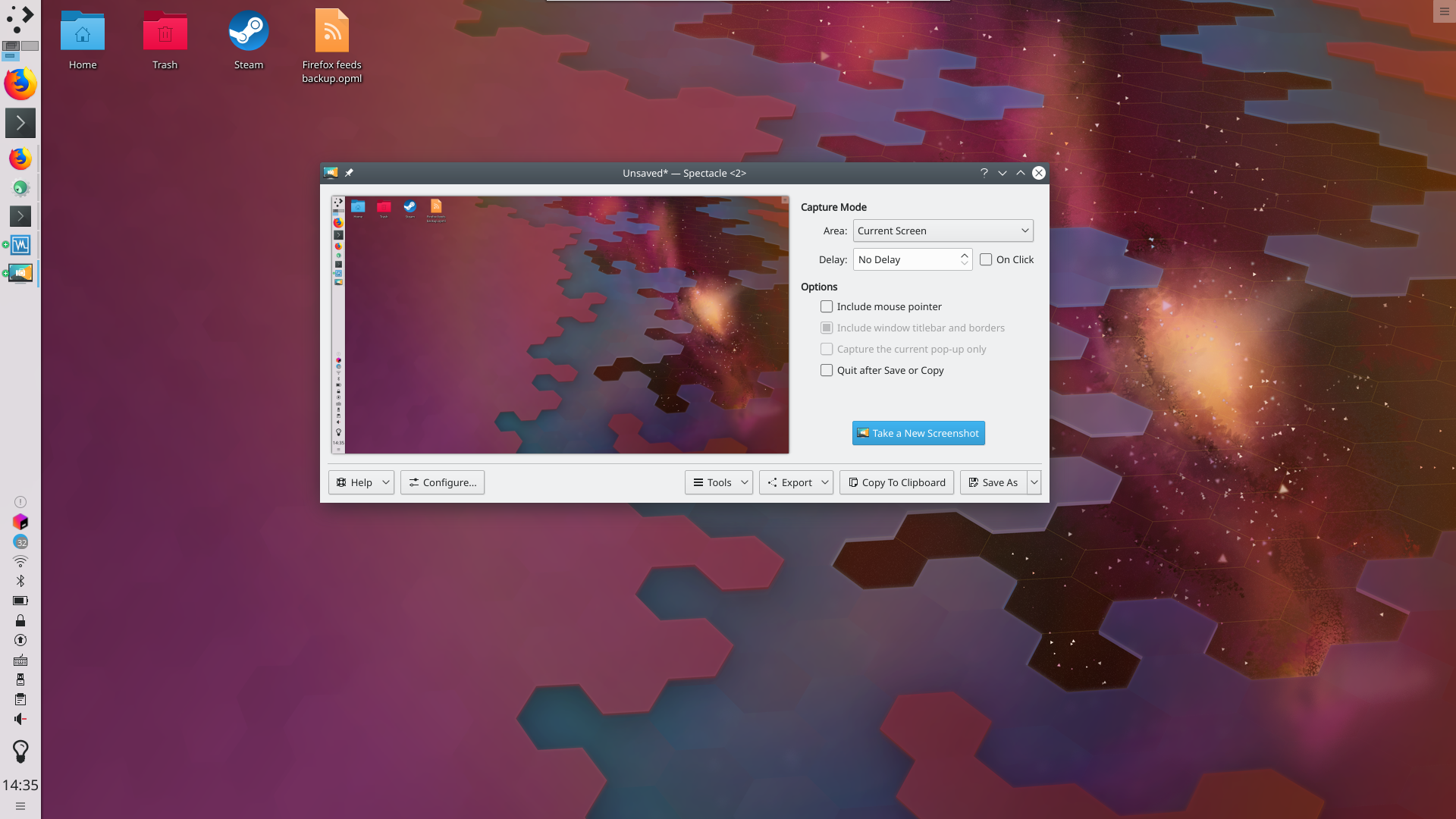
Just for comparison:

https://userbase.kde.org/images.userbase/4/4c/Spectacledefau...

The default kde screenshot app just has simple dropdown menus for all that. Is command+$, space, option+click really better than PrtScr, click?

Re: macOS screenshot tricks to impress your co-workers

#245
post #45

Here is a key sequence I use very often. It takes a screenshot of a chosen window without the window's shadow. - First, type command + shift + 4 (the mouse pointer turns into crosshair). - Then type the space bar (the crosshair turns into a camera icon). - Hover the mouse pointer (a camera icon now), to highlight the chosen window. - Finally, hold the option key and click. This sounds like a lot of steps but it becom…

I think Mac OS has the most inaccessible hidden hotkey shortcuts out of every OS I've used. Even essential functions like showing hidden files in a directory is uniquely done through an hidden shortcut in Mac OS.

They're not "hidden" when you know them.

Re: macOS screenshot tricks to impress your co-workers

#246
post #56

Earlier quoted context omitted.

FYI, Cmd + Shift + 5 encapsulates all the various options into one UI.

and adds screen recording functionality as a video

Oh that’s cool! I always use QuickTime Player for that, something in the screenshot UI makes more sense

Re: macOS screenshot tricks to impress your co-workers

#247
post #230

Earlier quoted context omitted.

I think Mac OS has the most inaccessible hidden hotkey shortcuts out of every OS I've used. Even essential functions like showing hidden files in a directory is uniquely done through an hidden shortcut in Mac OS.

I fully agree. macOS is a nightmare of usability. For showing hidden files and file extensions, there's a Terminal command you can run to permanently set it for every file. Of course, since it's only exposed through some command line utility, I forgot what it was and would have to search again.

cmd + shift + . (that's a dot / period / full stop with cmd and shift) is the built in shortcut in Finder to toggle hidden files. Easy to remember as hidden files start with a dot.

Re: macOS screenshot tricks to impress your co-workers

#248

I swear, I have zero understanding of why Mac users are so delighted when they discover previously-unknown features. These features should be easily discoverable . But maybe I'm missing a trick. Maybe there's a deliberate effort in Apple to make only a minimal viable subset of features easily discoverable. Maybe some features have their documentation hidden a little deeper. And maybe accidental discovery gives Mac us…

They are perfectly discoverable, what with the Screenshots being done through an app named - you guessed it - "Screenshots". These kind of bloggers just like to pretend they're hidden in order to sell their "expertise".

Re: macOS screenshot tricks to impress your co-workers

#249

Earlier quoted context omitted.

I couldn't find anything on their website, my workflow, which I hate is: Screenshot section to file, click on preview before it disappears, markup on iPad with Apple Pencil, copy to clipboard, paste to Docs/Slack/GitHub, delete file. I really wish I could eliminate the temporary files in this process. Do you happen to know if Cleanshot can do iPad annotation?

Doesn’t selecting Preview (instead of the folder, as suggested in the article) let you skip the saving-to-disk part?

If you click on it as soon as it's taken, it opens in an editor. The editor isn't Preview I don't think, but damned if I can tell what it is.

Re: macOS screenshot tricks to impress your co-workers

#250
post #236

Earlier quoted context omitted.

> essential functions like showing hidden files in a directory How is that an essential function? My mom has never needed it in 20 years of using Macs. And when I want to know about hidden files, I pop open a terminal and ls -la.

That is kind of hilarious: This GUI feature is very undiscoverable. No, no, "just" open a terminal instead and type this.

The entire point of these hidden files is that the user should never see them. Otherwise they’ll think, what’s this nonsense?, and delete them.

It should be difficult to see hidden files. And it is!

Post reply on HN